





Do we need Planning Center?
No. Local plans let you build and recall card layouts entirely offline. Planning Center is what makes the screen update itself: connect it and the roster follows your plans automatically.
Every vocalist’s face, name, and mic number on one screen. Pulled from Planning Center, kept current all Sunday, automatically.
Runs in demo mode until you add a license. No account, no card. A license is $39, paid once. macOS 10.15 or newer, Intel and Apple Silicon.
 01
01
 02
02
 03
03
 04
04
 05
05
 Host
Marcus Reed
Host
Marcus Reed
 Message
Pastor David
Message
Pastor David
Mic assignments live on gaff tape, whiteboards, and group chats. The moment the roster changes, all three are wrong.
Planning Center schedules a different vocal team almost every week. Anything handwritten is stale by the time doors open.
The worship leader can name every assignment from memory, and they’re busy running soundcheck.
A volunteer who just joined the team shouldn’t have to guess which singer is which.
MicQ replaces all of it with one screen everyone can see: faces, names, and numbers that update themselves.
A setup wizard walks you through all of it. From download to faces on screen is about ten minutes.
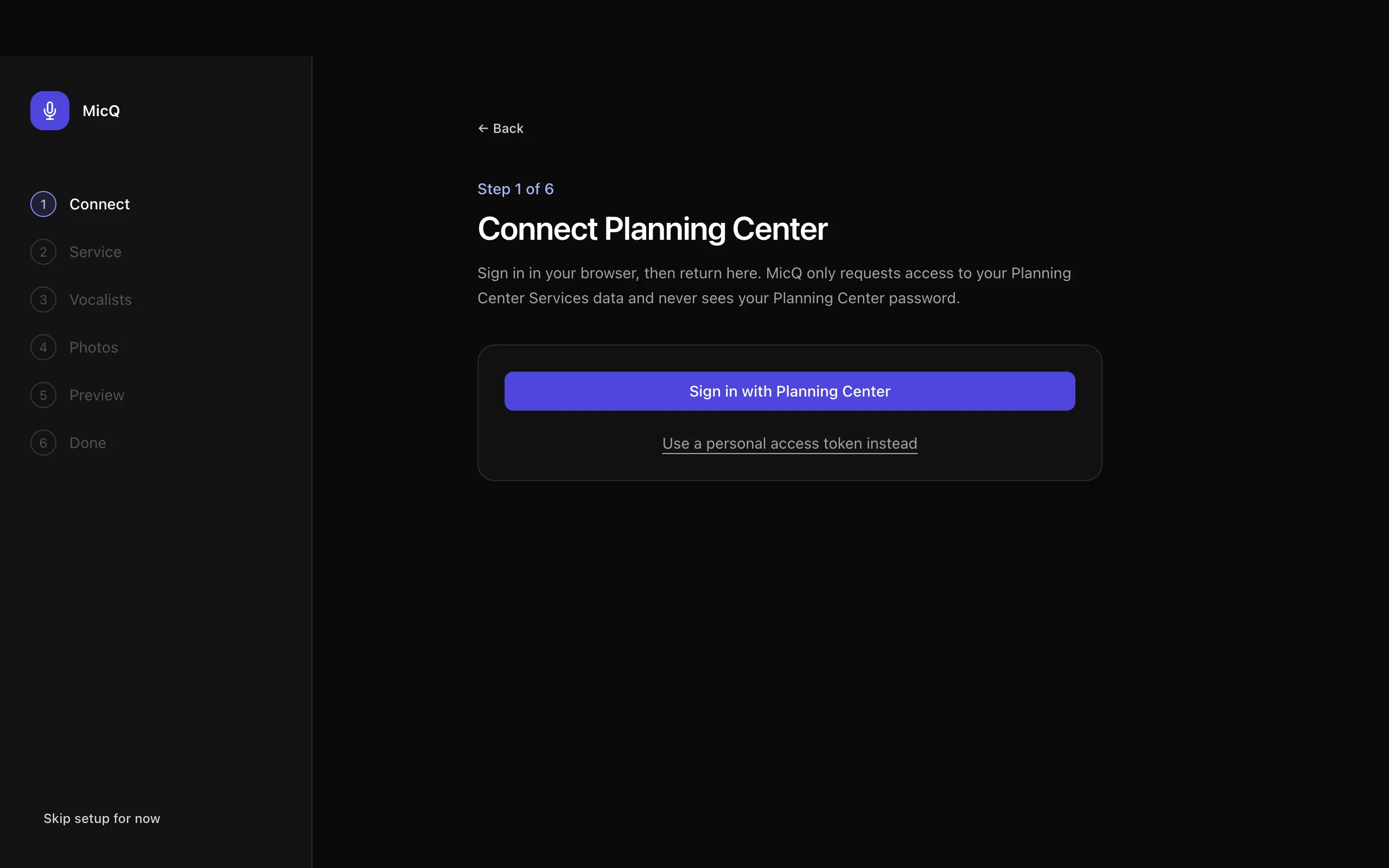
Choose Sign in with Planning Center, approve access to Services in your browser, and return to MicQ. The wizard confirms the connection and brings in your services. No token to copy and no Planning Center password for MicQ to see.
Name each vocalist position Mic/IEM 3 - Alto once, in Planning Center. MicQ reads the mic number and the vocal part right out of the name. No custom fields, no per-week assignments.
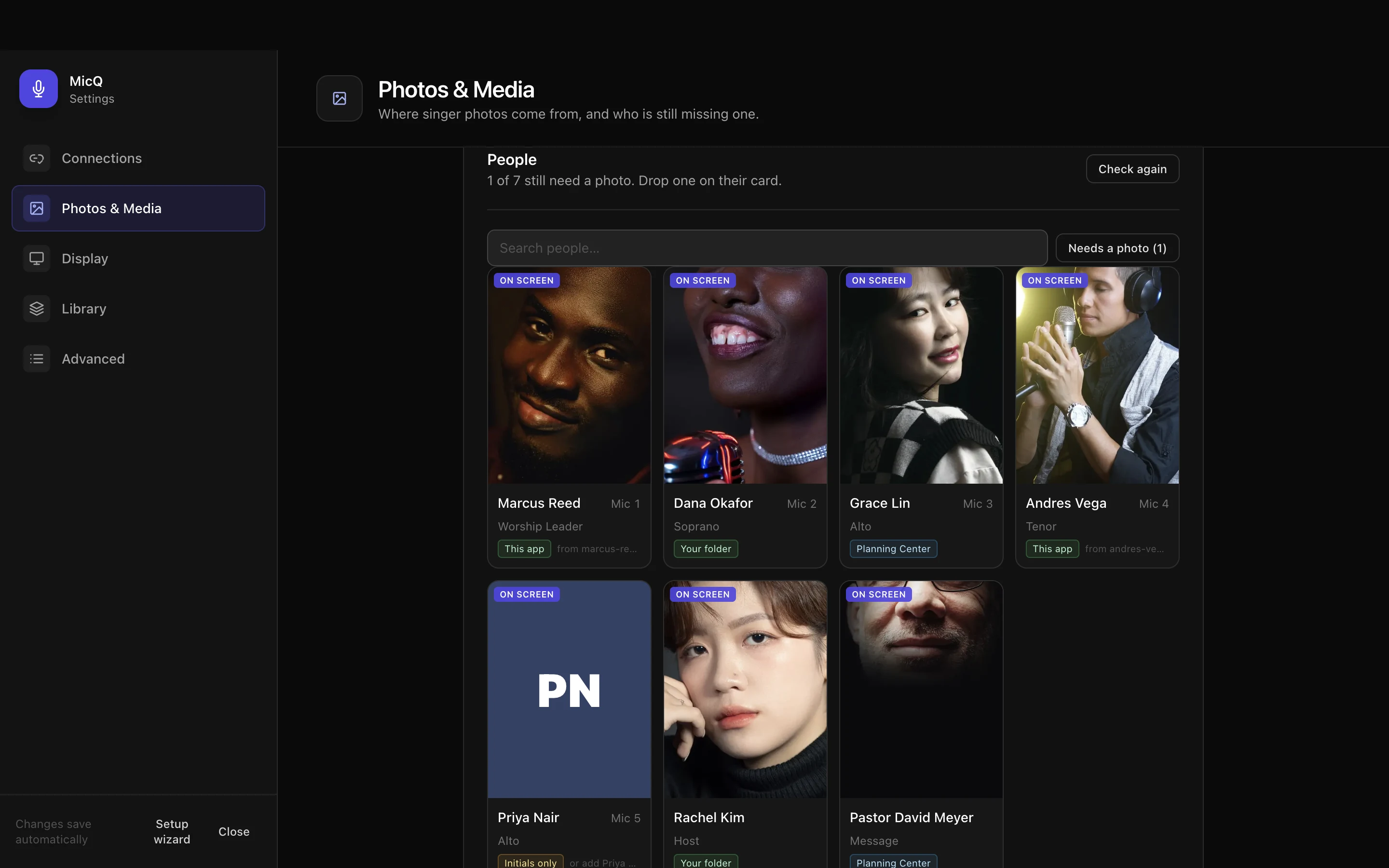
Drop a photo on a person, point MicQ at a folder on this Mac, or let it use their Planning Center profile photo. Initials are the final fallback, so a card never goes blank. A synced Google Drive, Dropbox, or iCloud folder works like any other folder on the Mac.
MicQ checks for the next plan every five minutes and switches to whichever gathering is next. If anything breaks, the last-good screen stays up and the audience never knows.
Send the grid fullscreen to a second display. Your window becomes the console: status, controls, and problems stay on your side of the room.
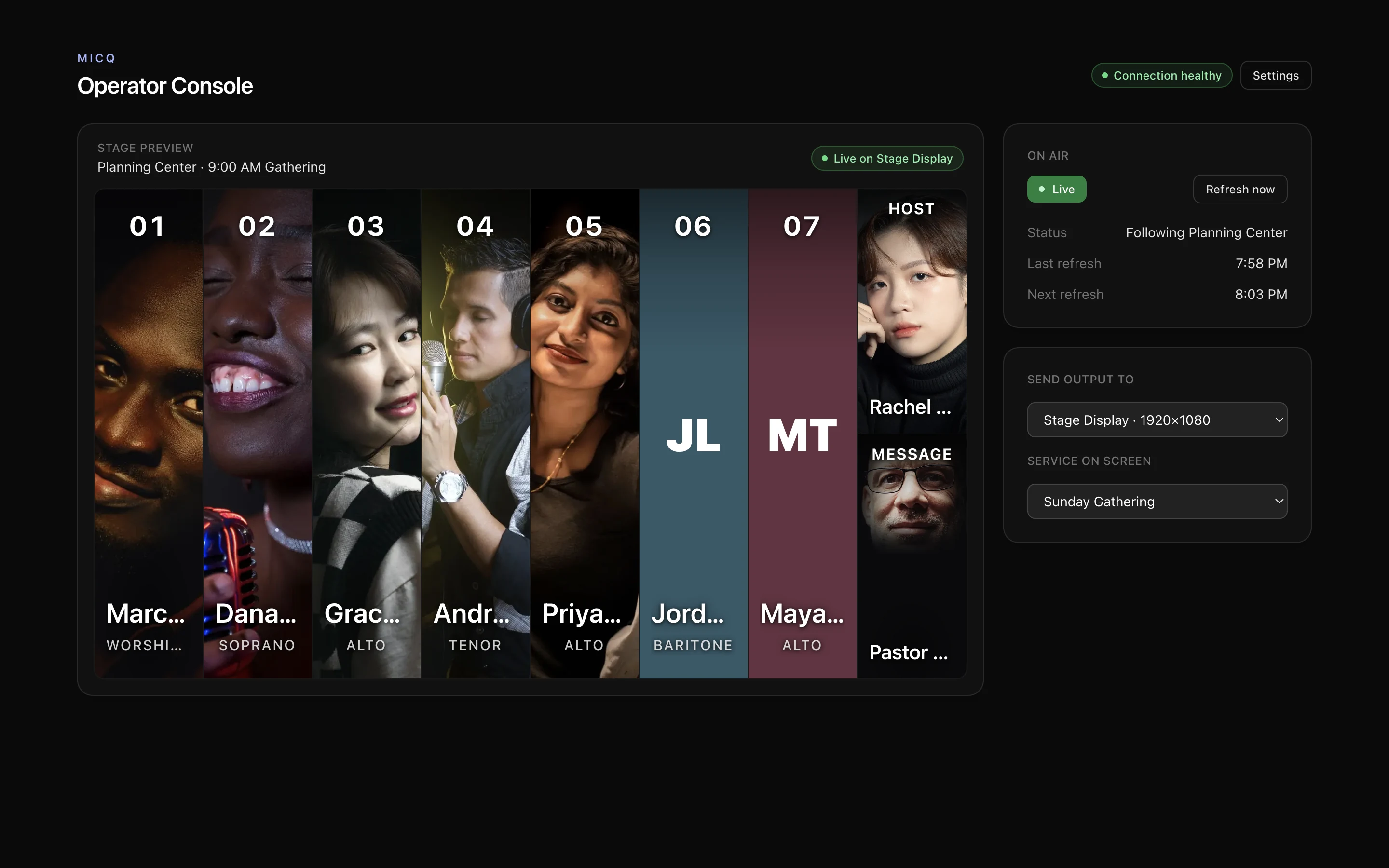
Live follows Planning Center. Hold pins exactly what’s on screen, and recalled layouts hold automatically so nothing replaces them mid-service.
Run Sunday and Wednesday with their own rosters, layouts, and styling. MicQ can auto-switch to whichever service is next.
Every control one keystroke away. Switch services, hold, refresh, or go fullscreen without hunting through menus.
The stage display goes fullscreen on its own monitor. What the congregation sees is only ever faces, names, and numbers.
No Planning Center? No internet? Build a layout by hand in an editor that looks exactly like the display, save it, and recall it any time.

Arrange singers, roles, and split columns once in a visual editor. The template applies itself whenever that service loads.
Pastor, host, message: link any Planning Center position and choose the label that appears on the card.
A failed refresh keeps the last-good roster up. Warnings stay in the operator bar, where they belong.
Updates download in the background and install on the next restart. MicQ never restarts itself mid-service.
MicQ’s launch price is $39, paid once. After purchase, your key arrives by email; on first launch, paste it into MicQ and choose Activate.
Payment and receipts are handled by Polar. Every purchase has a 14-day, no-questions refund window. To move a seat, choose “Move to another computer” in Settings → Advanced, confirm, then activate the same key on the new Mac.
No. Local plans let you build and recall card layouts entirely offline. Planning Center is what makes the screen update itself: connect it and the roster follows your plans automatically.
Just the vocalist position names, once: Mic/IEM 2 - Alto, Mic/IEM 3 - Tenor, and so on. MicQ reads the mic number and part from the name. There are no custom fields and no per-week steps.
The fastest option is dropping a photo onto someone in MicQ. You can also point it at a folder on your Mac, including a Google Drive, Dropbox, or iCloud folder synced to disk. Planning Center profile photos and then initials are automatic fallbacks.
Yes. MicQ is a native Mac app for macOS 10.15 Catalina and newer, on both Intel and Apple Silicon.
Nothing visible happens. The last-good roster stays on screen and the failure is reported only in the operator bar. You can also flip to Hold to pin the screen yourself.
Yes. In Settings, under Advanced, choose “Move to another computer” and confirm to free the seat, then activate the new Mac with the same key.
What gets built next comes from the people running MicQ on Sunday. A feature you expected and didn’t find, a step that felt backwards, the thing your team keeps working around. Send it to info@trymicq.com and it reaches me, not a queue.